Online Label & Sticker Designer: Why Ours Is Built From Scratch for Print

Most online sticker designers are general-purpose drawing tools with a “labels” mode bolted on. They run in your browser using colour spaces designed for screens, they rasterise uploaded graphics as RGB pixels, and they have no real concept of cut lines, bleed, or white ink. When you hit “order”, you’ve designed your stickers in a system that was never meant for printing — and the results show. Dull colours, white edges, cut-off lettering, clear stock that looks washed out, metallic stock that doesn’t pop.

We built ours differently. The Sticker Nation designer was written from scratch in 2016, specifically to solve the problem we were seeing every day on our own press: customers sending us artwork that was never going to print the way they expected. Instead of fixing artwork by hand forever, we built an in-browser tool with proper print-industry standards baked in from the first click. This article explains what “built for print” actually means, and why the differences matter once your sticker ends up in a customer’s hands.

True CMYK From the First Click, Not Converted at the End

Every print press uses CMYK — cyan, magenta, yellow, and black — to reproduce colours on vinyl, paper, and film. Screens use RGB: red, green, and blue. These two colour spaces don’t overlap perfectly. There are colours you can see on your monitor that a printer can’t physically produce, and subtle shifts happen whenever RGB gets converted to CMYK.

Most online designers work entirely in RGB. You design in RGB, the tool exports RGB, and the file is converted to CMYK at the last moment — usually by the printer’s software, without you ever seeing the result until the stickers arrive. That conversion is where colour shifts creep in. Your vibrant sky blue dulls to grey. Your bright coral becomes a flat red. Gradients band. By the time you see the printed result, the design you approved on screen and the design in your hand are two different things.

We do it differently. Our designer works in CMYK throughout. Every colour you pick, every gradient, every imported graphic — all processed in CMYK from start to finish. We use Fogra 39, the industry-standard ICC colour profile for coated stock and vinyl, to calibrate colours accurately against our actual press output. The colours you see in the designer preview are the colours that come off the press. No last-minute conversions, no “we’ll do our best” disclaimers.

Your Logo, Preserved Exactly as You Designed It

When you import a logo into a generic online designer, the tool typically rasterises it — converts it to a grid of RGB pixels — so it can display it in a browser canvas. If that logo was originally designed in CMYK or contains spot colours (as most professionally designed brand logos do), those original values are thrown away and replaced with rough RGB approximations. Your brand’s carefully chosen blue becomes a guess.

Our designer treats imported graphics as linked assets, the same way InDesign or Illustrator does on the desktop. When you upload a PDF, AI, or SVG file with CMYK or spot colours, we preserve those original colour values untouched. The logo sits inside your design as a reference to the original file, not a re-rendered copy. When we export your print-ready PDF at the end, those original values go straight to our press exactly as you uploaded them.

This matters for anyone working with brand guidelines. A logo is supposed to look the same across every printed product, not slightly different every time because a different tool rasterised it differently. Linked graphics are how professional print workflows preserve brand consistency — and we built it into our online designer because the alternative was unacceptable.

Automatic Cut Lines, Bleed, and Safe Zones

Every printed sticker needs three things before it can go on a press:

  1. A cut line — the exact path the cutter will follow to shape the sticker
  2. Bleed — extra artwork extending beyond the cut line, so any slight cutter misalignment doesn’t leave a white edge
  3. A safe zone — a margin inside the cut line where critical content (text, logos) must sit to avoid being trimmed

Miss any one and the stickers come out wrong. White borders where the cutter drifted. Logos with clipped edges. Text disappearing into the trim. If you’ve ever ordered stickers online and wondered why they arrived with strange white edges or cut-off lettering, this is almost always why.

Our designer handles all three automatically. When you pick a shape and size, the cut line is generated instantly from the actual cutter path. Bleed is added to the outer edge without you doing anything. The safe zone is shown as a visible guide inside the canvas so you know where your design can go. You don’t have to think about any of it — and you can’t accidentally skip it. Every design that leaves our designer is print-ready by definition.

Native White Ink for Clear, Metallic, and Dark Stock

White ink is the unsung hero of sticker printing. When you print on anything that isn’t plain white — clear vinyl, metallic silver or gold, black stock, coloured stock — your coloured inks alone won’t look right. Reds turn muddy, yellows almost disappear, and anything transparent stays see-through. The fix is a layer of white ink printed underneath the colours, giving them an opaque white base to sit on.

Most online designers have no white ink support at all. You can’t specify where it goes, you can’t preview it, and you can’t control whether a particular element has white underneath. Some let you leave a note in a comments field and hope the printer figures it out.

Our designer has native white ink support. You can:

  • Toggle white ink on and off for individual elements — text, shapes, imported graphics
  • Choose whether a given element is printed with or without a white underbase
  • Preview the white layer in isolation to see exactly where the white ink will sit
  • Export a press-ready file with a dedicated white ink separation that drops straight onto our press

If you’re ordering clear, metallic, or dark-stock stickers, this feature alone is worth choosing a purpose-built designer over a generic one. A gold foil sticker with a proper white underbase looks premium. The same design without the underbase looks flat and washed out.

Separation Preview: See Every Ink Plate Before You Order

Professional print software — InDesign, Illustrator, specialist RIP tools — lets designers preview each ink separation individually. You can isolate just the cyan, just the magenta, just the white ink, just a spot colour. It’s how print professionals catch problems before they reach the press: a hidden black element that shouldn’t be printing in black, a spot colour accidentally converted to process, a white ink layer that’s missing from half the design.

Our online designer has the same separation preview feature built in. Click a button and see your design as just the cyan plate, just the white ink channel, just the black. Toggle each ink on and off independently. Spot and correct problems before they become printed stickers.

Almost no other online sticker designer offers this. It’s a feature most generic design tools don’t even conceptually support, because they don’t think in terms of print plates. We think in print plates because we built the designer alongside the press that actually uses them.

InDesign-Style Workflow, Desktop-App Production Quality, Free

Beyond the print-specific features, the Sticker Nation designer is built to work like a professional desktop design app — in your browser, for nothing:

  • Save drafts and come back later to finish a design
  • Load previous orders with one click to duplicate or iterate on an existing sticker
  • Graphics creator tool with shapes, gradients, patterns, and text-on-path effects
  • Hundreds of fonts included, with proper kerning and leading controls
  • Barcode and QR code generation built directly into the canvas
  • 3D product previews showing how your design will look on real candle jars, cosmetic bottles, boxes, and other containers
  • Multi-page designs for sheet and kiss-cut layouts
  • Full-fidelity PDF import with vector preservation

All of this is free to use. No subscription, no “pro” upgrade hidden behind a paywall, no account-tier limits. We built it as part of our print workflow rather than as a standalone product we need to monetise — and the result is that our customers get tools they’d normally only find inside paid desktop software, inside a browser, for nothing.

Built By a Print Company, Not a Software Company

Here’s the difference in one sentence: the Sticker Nation designer wasn’t built by a software company trying to enter the print industry. It was built by a print company that got tired of fixing customer artwork.

We started printing labels and stickers in 2007. For the first nine years, we handled customer artwork the way every other printer does — customers sent us Illustrator files, Photoshop files, PDFs in every imaginable state of readiness. We fixed missing bleed by hand. We converted RGB to CMYK and crossed our fingers. We added cut lines manually. We explained white ink requirements over email, again and again. We re-ran orders that came out wrong because the original file wasn’t what the customer thought it was.

In 2016 we decided this was the actual problem worth solving. Not “how do we print faster” but “how do we stop receiving files that aren’t ready for print in the first place”. The answer was to build the entire design experience ourselves, with all the print prep baked in, so by the time a customer clicks “order”, the file is already exactly what our press needs.

That’s why our designer is different. It isn’t a generic drawing tool with a sticker category. It’s a purpose-built print production tool, in a browser, free. Every feature — from CMYK colour management to separation preview — exists because we needed it to run our own press. We just turned it into something our customers can use themselves.

Try the Difference Yourself

Design doesn’t feel different until you see the print. The best proof that our designer is built differently is ordering a single sticker from it and comparing the result to one from any other online printer. You’ll notice the colour accuracy immediately. You’ll notice the clean cut edges. You’ll notice the white ink layer works the way it’s supposed to. You’ll notice that what you saw on screen is what showed up in the envelope.

We’ve been refining this tool every year since 2016 because it runs alongside an actual print press. Every feature that’s in there is in there because it made the next order faster, cleaner, or more accurate. None of it is marketing polish — it’s production plumbing made visible. Design your first sticker or label now. It’s free.

Product Photo Shoots for Small Brands: Using Sample Labels to Save Thousands

Why Product Photography Starts with the Label

Your ecommerce listings live or die on the product photo. Before a customer reads the description they’ve already decided whether to click, and a bare prototype with a taped-on digital mockup rarely convinces anyone. The label on the bottle is the first thing the camera sees — so it needs to exist in real life before the shoot.

The Chicken-and-Egg Problem Every New Brand Hits

New brand owners face a tricky order of operations. You need photos to sell the product. You need the product to take the photos. You need the labels on the product before you photograph it. And you don’t want to commit to 5,000 labels of a design you’re still tweaking. Short run label printing breaks the deadlock. Order a small sample batch of your current artwork, apply them to real products, shoot the photos, and only scale the design once it has earned its place on your storefront.

Order Samples, Then Book the Shoot

  • Print two or three design variants: if you can’t decide between colourways or layouts, sample all of them. It costs pennies more and saves days of agonising.
  • Apply to real products: plastic mockups read as plastic in the final image. Photograph real glass bottles, real jars, real candles with real labels wrapped around them.
  • Shoot once, use everywhere: one good set of product photos feeds your Shopify store, Etsy, Amazon, Instagram, email marketing and press kit for a year.
  • Keep the winners: when one variant outperforms the rest, you already have the artwork ready and the supplier lined up to scale.

Getting More Mileage From One Shoot

Because sample runs are cheap, you can use one shoot day to produce flat-lays, lifestyle shots and packshots for every product variant in your range. Photographers charge per hour, not per SKU, so having every labelled product ready on shoot day is where small brands claw back real value. A £200 shoot with ten labelled samples can give you a year’s worth of marketing assets at about the cost of one stock photo library subscription.

Scaling Up Without Re-shooting

When a design proves itself — sales climb, the photos work, the reviews match the brief — order the full run in the same artwork and your existing product photos keep working. No re-shooting, no rebuilding listings, no wasted past investment. The sample labels paid for themselves the moment the shoot went live, and the big run becomes a low-risk scale-up rather than a gamble on an unvalidated design.

Ordering Sample Labels for Your Shoot

StickerNation has no minimum order, so sample quantities cost a fraction of a full production run. Design online, order small batches, photograph your products, and reorder the winning design whenever you’re ready — the artwork stays on file so scaling up is a single click away.

Short Run Label Printing for Small Brands: Start Small Before Mass Production

Why Small Brands Should Start Small

Getting your product on a shelf shouldn’t require spending £1,500 on your first label order. Short run label printing lets small brand owners launch real products with real labels — at quantities that match actual sales, not optimism. It’s the difference between testing the water and betting the business on an untested design.

The Hidden Cost of Mass Production

Traditional label printers quote 5,000, 10,000 or 25,000 units to bring the per-label price down. That works for established brands with predictable demand. For a new maker, it means paying upfront for stock you haven’t sold, storing boxes of labels for a design you might outgrow in six months, and absorbing the cost if you tweak your name, pricing or ingredients list mid-run.

What Short Run Label Printing Lets You Do

  • Launch with 50 or 100 units: enough to list your product, fulfil early sales, and get feedback without gambling on an untested market.
  • Iterate between runs: change the design, adjust the copy, correct the ingredients list, and reorder within days.
  • Print multiple variants: produce Lavender, Rose and Citrus labels in one session for a new candle range, each in its own small quantity.
  • Protect cashflow: order £30 of labels this week instead of £800 and reinvest the saving into stock, marketing or better ingredients.

Test Materials Without Committing

Short runs also let you prototype materials. Order a sample run in gloss vinyl, another in matte, and a third in kraft paper. Apply them to your real bottles or jars, photograph the result, and decide which finish sells the product best before you place a bigger order. One mass-production run locks you into a single material; several short runs let you find the right one without losing money on the losers.

Scaling Up When You’re Ready

Every short run gives you real data — which design customers prefer, which material survives your packaging, and how fast you actually sell. When you’re confident, the same artwork scales straight up to larger quantities without re-setup. You keep the flexibility of small batches until the moment economies of scale genuinely start paying off, and not a day before.

Ordering Your First Short Run

StickerNation has no minimum order on any label size. Design your artwork online in minutes, pick your quantity, and pay only for what you need. Reorder the same design at any time, or tweak it between runs without setup fees — so your label grows with your brand, not the other way around.

Barcode & QR Code Labels: Printing, Scanning & Best Practices

Why Barcodes on Labels Matter

Barcodes and QR codes are functional elements that must scan reliably every time. A barcode that fails to scan at point of sale causes delays, customer frustration, and potential lost sales. Understanding the technical requirements for printed barcodes ensures your labels work as intended.

Common Barcode Types

EAN-13 / UPC-A

The standard retail barcode used worldwide. Required for any product sold through retail channels. Consists of 13 digits (EAN-13) or 12 digits (UPC-A). You need a GS1 membership to obtain legitimate barcodes for retail sale.

Code 128

A versatile barcode used in logistics, shipping, and inventory management. Can encode any ASCII character. Common on shipping labels and warehouse systems.

QR Codes

Two-dimensional codes that store URLs, text, contact information, or other data. Increasingly used on product labels to link to websites, ingredient lists, instructions, or promotional content. Can store significantly more data than traditional barcodes.

Data Matrix

A 2D barcode used in industrial and pharmaceutical applications. Very compact — can encode data in a small space. Common on medical device labels and electronic components.

Printing Requirements

Minimum Size

  • EAN-13: Minimum 80% of nominal size (approximately 26mm x 18mm). Standard size is 37.29mm x 25.93mm.
  • QR Code: Minimum 15mm x 15mm for reliable scanning. 20mm+ recommended for consumer use.
  • Code 128: Variable width depending on data length. Minimum bar height 5mm.

Quiet Zones

Every barcode requires a clear margin around it called the quiet zone. This empty space allows scanners to detect where the barcode starts and ends. Minimum quiet zones:

  • EAN-13: 3.63mm left, 2.31mm right
  • QR Code: 4 modules (approximately 2-3mm at typical sizes)
  • Code 128: 10x narrow bar width on each side

Colour and Contrast

Barcode scanners read the contrast between dark bars and light spaces. For reliable scanning:

  • Best: Black bars on white background (maximum contrast)
  • Acceptable: Dark blue, dark green, or dark brown bars on white or light yellow
  • Avoid: Red bars (many scanners use red lasers and cannot read red), light colours on light, or dark on dark
  • Never: Barcodes on metallic or reflective surfaces without a white ink base

Resolution

Barcodes must be printed at sufficient resolution for clean, sharp edges on the bars. Minimum 300 DPI is required. Lower resolution causes fuzzy bar edges that can cause scan failures.

QR Code Best Practices

  • Test before printing: Scan your QR code with multiple devices and apps before ordering
  • Use a short URL: Shorter data produces a simpler, more scannable QR code
  • Error correction: Use Level M (15%) or Level Q (25%) error correction for labels that may get scuffed
  • Add a call to action: QR codes without context are ignored. Add text like Scan for ingredients or Scan for 10% off
  • Maintain contrast: Dark modules on a light background. Custom-coloured QR codes are possible but must maintain minimum contrast ratios

Material Considerations

  • White vinyl: Ideal for barcodes — excellent contrast, durable, waterproof
  • Clear vinyl: Barcodes need a white ink background behind them for scanning
  • Metallic vinyl: Barcodes need a white ink base — reflective surfaces cause scan failures
  • Matte vs gloss: Both work well. Matte reduces glare that can occasionally interfere with scanning under bright lighting

Generating Barcodes

StickerNation s online designer includes a built-in barcode generator supporting EAN-13, UPC-A, Code 128, QR Code, and Data Matrix formats. Enter your data and the generator creates a print-ready barcode at the correct resolution and proportions. The barcode is placed directly on your label design within the editor.

Posted on

Introducing Our Free Sticker Template Generator

Setting up a sticker or label design file with the correct bleed, trim and safe zone can be one of the most frustrating parts of the print process — especially if you’re not a professional designer. Get it wrong and you end up with white edges, cropped text or artwork that doesn’t quite fit.

That’s why we’ve built a free Sticker Template Generator that does the setup for you in seconds.

What Does It Do?

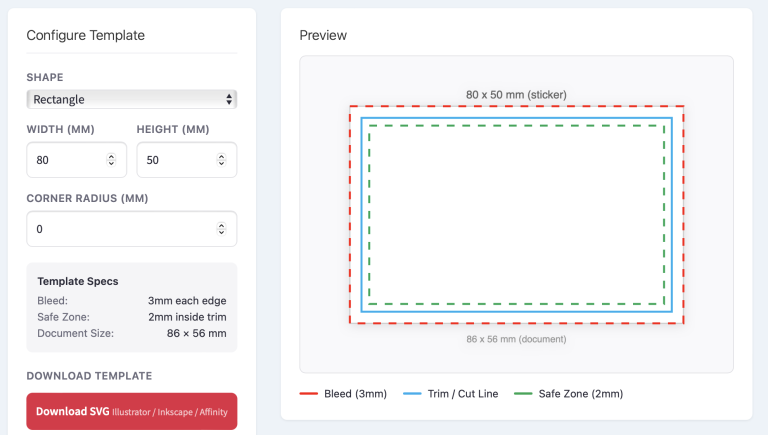
Head to our Sticker & Label Template Generator, choose your shape, enter your dimensions and download a print-ready template file — complete with:

  • 3mm bleed extending beyond the cut line
  • Trim line showing exactly where the sticker will be cut
  • 2mm safe zone so your text and logos are never at risk of being clipped

Templates are available in SVG, PDF and EPS formats, so whether you work in Illustrator, Photoshop, InDesign, Affinity Designer or Inkscape, you’re covered.

Why We Built It

Over the years, we’ve seen thousands of artwork files come through our print queue. One of the most common issues — and the biggest cause of delays — is artwork that’s been set up without proper bleed or safe zones. Designers spend time going back and forth fixing files, and customers have to wait longer for their stickers.

We wanted to remove that friction entirely. With the template generator, anyone can create a correctly sized file in a few clicks and start designing straight away, knowing the technical setup is already taken care of.

Shapes and Sizes

The generator supports four shapes:

  • Circle — perfect for logo stickers, envelope seals and jar lids
  • Square — ideal for QR codes, social media stickers and product branding
  • Rectangle — the go-to for bottle labels, address labels and packaging
  • Oval — a classic choice for artisan products, candles and cosmetics

You can enter any custom dimensions and, for rectangles and squares, add a corner radius to create rounded edges.

How to Use It

  1. Select your sticker shape
  2. Enter your width and height (or diameter for circles)
  3. Adjust the corner radius if you want rounded corners
  4. Check the preview to see your bleed, trim and safe zone guides
  5. Download your template in SVG, PDF or EPS
  6. Open the file in your design application and start creating

The template layers are clearly separated, so you can lock the guides and design on top of them with confidence.

What Happens Next?

Once your artwork is finished, you can upload it directly through our sticker designer when you place your order. We print on premium waterproof vinyl in glossy, matt, clear and metallic finishes — with no minimum order and fast UK delivery.

Try It Now

The Sticker Template Generator is completely free to use with no sign-up required. Give it a go and let us know what you think.

Launch the Template Generator →

How to Design Stickers Online: A Beginners Guide

You Do Not Need Design Software

Professional sticker design no longer requires expensive software like Adobe Illustrator or Photoshop. Modern online sticker designers run directly in your web browser, offering professional-grade tools for layout, typography, colour, and even PDF import — all for free.

Getting Started

Step 1: Choose Your Size

Start by setting the dimensions of your sticker in millimetres or centimetres. The designer will show you the exact canvas size with bleed margins and safe zones clearly marked.

Step 2: Choose Your Shape

Select from standard shapes (circle, square, rectangle, rounded rectangle, oval) or choose custom/die-cut to create a unique outline that follows your design.

Step 3: Add Your Design Elements

You can build your sticker from scratch or start with existing artwork:

  • Upload images: Drag and drop PNG, JPG, SVG, or PDF files directly onto the canvas
  • Add text: Choose from hundreds of fonts, adjust size, colour, spacing, and alignment
  • Shapes and graphics: Add rectangles, circles, lines, and decorative elements
  • Patterns and backgrounds: Apply fills, gradients, and pattern effects

Working with Colour

CMYK Colour Mode

Professional sticker designers work in CMYK colour mode because that is how printers produce colour. The CMYK colour picker lets you specify exact ink percentages — Cyan, Magenta, Yellow, and Key (Black) — ensuring your printed colours match your design intent.

Colour Accuracy

Your screen displays colours using RGB (light), which has a wider colour range than CMYK (ink). Some vivid screen colours cannot be exactly reproduced in print. A good online designer includes a CMYK soft-proof preview that simulates how your design will look when printed.

Uploading Existing Artwork

If you already have a logo or design:

  • PNG files: Best for images with transparency. Ensure 300 DPI for sharp printing.
  • SVG files: Vector format — scales perfectly to any size without quality loss.
  • PDF files: Professional design files. A good online designer preserves vector data from PDFs, keeping text and shapes sharp at any print size.
  • JPG files: Acceptable but no transparency support. Ensure high resolution.

Typography Tips

  • Minimum font size: 6pt for body text, 8pt recommended. Below this, text may not print clearly.
  • Font choice: Sans-serif fonts (like Helvetica, Arial, Montserrat) are more legible at small sizes. Serif and decorative fonts work better for headings at larger sizes.
  • Contrast: Ensure strong contrast between text colour and background. Light text on dark, or dark text on light.
  • Kerning and spacing: Adjust letter spacing for headings to improve readability.

Preparing for Print

  • Bleed: Extend background colours 3mm beyond the cut line. Most online designers handle this automatically.
  • Safe zone: Keep critical text and logos 3mm inside the cut line.
  • Resolution: All uploaded images should be 300 DPI at final print size.
  • Preview: Always use the preview or proof feature before ordering to check your design at actual print size.

Multi-Page Designs

If you need multiple sticker designs in one order, use the pages feature to create multiple designs within a single project. Each page can have a different design but shares the same size, shape, and material settings.

Using the StickerNation Designer

Our free online sticker designer includes CMYK colour picking, PDF import with vector preservation, hundreds of fonts, pattern and gradient tools, a graphic creator, curved text, text on path, barcode generation, and a print-ready PDF export with proper bleed, cut lines, and spot colours. No account required — just choose a product and click Design Now.

CBD & Hemp Product Labels UK: Novel Food, THC Declarations & Compliance

CBD Labelling Is a Regulatory Minefield

CBD products in the UK exist in a complex regulatory landscape. They are classified as novel foods by the FSA (Food Standards Agency), must comply with general food labelling rules, cannot make medicinal claims, and must declare THC content to demonstrate legality. Getting labelling wrong can result in product seizure and prosecution.

Novel Food Status

Since February 2020, CBD extracts are classified as novel foods in the UK. This means CBD products require a validated novel food application with the FSA to remain legally on sale. Products without a valid application are technically unlawful to sell. Your label should not reference novel food status but your product must have it.

Mandatory Label Information

  • Product name clearly indicating CBD content
  • CBD content in mg (per serving and per container)
  • Full ingredients list with allergen declarations
  • Suggested use/dosage
  • Net quantity
  • Best before date
  • Batch number
  • Business name and address
  • Storage conditions
  • Food supplement statement (if applicable)
  • Warning statements: not for use by pregnant or breastfeeding women, consult doctor if taking medication

THC Content

CBD products sold in the UK must contain less than 1mg of THC per container (not per dose). This is a criminal law threshold — exceeding it makes the product a controlled substance. While not legally required on the label, many brands display THC: less than 0.2% or THC: ND (not detected) to reassure consumers and retailers.

Health Claims

No medicinal claims are permitted. You cannot say your CBD product treats pain, anxiety, insomnia, or any other condition. Even implied health benefits through imagery or testimonials can breach regulations. You may only make EU Register approved nutritional/health claims for other ingredients in the product (e.g. vitamin content).

Materials

CBD products — especially oils in dropper bottles — need labels that resist oil spillage. Vinyl with UV-cured inks is resistant to CBD carrier oils (MCT, hemp seed oil). Matte vinyl gives the wellness-brand aesthetic most CBD companies target.

Ordering

StickerNation prints CBD labels on oil-resistant waterproof vinyl. Small bottle sizes from 10ml dropper bottles upward. No minimum order.

Sticker Sizes: A Complete Sizing Guide for Every Application

Why Size Matters

Choosing the wrong sticker size is one of the most common mistakes. Too large and it overwhelms the surface or looks cheap. Too small and the text is illegible or the design loses impact. This guide covers the standard sizes for every common application, helping you choose the right dimensions before ordering.

Packaging Stickers

Packaging Seals

Used to seal tissue paper, bags, boxes, and envelopes. The sticker should be large enough to hold the packaging closed but small enough to look intentional, not like tape.

  • Small seal: 25mm circle — minimal branding, elegant closure
  • Standard seal: 38mm circle — the most popular size, enough for a logo
  • Large seal: 50mm circle — room for logo plus text like Thank You
  • Oval seal: 50mm x 30mm — fits narrow packaging seams

Thank You Stickers

  • Standard: 38mm circle or 50mm circle
  • With message: 50mm x 35mm rectangle or 60mm circle
  • Premium: 60mm x 40mm rounded rectangle

Shipping Box Labels

  • Branded box seal: 75mm x 50mm or 100mm x 35mm
  • Fragile/handling label: 75mm x 50mm
  • Return address: 65mm x 25mm
  • Full shipping label: 100mm x 150mm

Product Labels

Candle Labels

  • Tin lid (4oz): 50mm circle
  • Tin lid (8oz): 65mm circle
  • Jar front (small): 50mm x 50mm
  • Jar front (medium): 70mm x 50mm
  • Jar front (large): 80mm x 60mm

Cosmetic Bottles

  • Small bottle (30ml): 50mm x 30mm or 40mm x 40mm
  • Medium bottle (100ml): 80mm x 40mm
  • Large bottle (250ml): 100mm x 50mm
  • Tube label: 60mm x 30mm

Food Jars

  • Mini jar (45ml): 40mm x 30mm
  • Standard jar (200ml): 70mm x 50mm
  • Large jar (340ml): 90mm x 60mm
  • Lid label: 50-65mm circle (match jar lid diameter minus 5mm)

Branding Stickers

  • Laptop sticker: 60-80mm (die-cut to logo shape)
  • Water bottle sticker: 50-70mm
  • Phone case sticker: 40-50mm
  • Skateboard sticker: 80-120mm
  • Giveaway sticker: 50-70mm

Vehicle & Outdoor

  • Car bumper sticker: 200mm x 65mm
  • Rear window decal: 150-200mm
  • Van side panel logo: 300-600mm
  • Shop window: 200mm+ (custom sized)

How to Measure

If you are labelling an existing product, measure the available surface area and subtract 5-10mm from each dimension to leave a comfortable margin. For curved surfaces like bottles, wrap a piece of paper around the surface and mark where the edges should be — this gives you the maximum width for a wrap-around label.

When in doubt, print your design at 100% scale on paper, cut it out, and hold it on the product. This 30-second test prevents expensive mistakes.

Custom Sizes

At StickerNation, every order is custom sized — there are no fixed size constraints. You specify the exact width and height in millimetres, centimetres, or inches. Our online designer shows your sticker at the correct proportions so you can visualise the final result before ordering.

Handmade Jewellery Labels: Branding, Pricing & Small Format Solutions

Small But Significant

Jewellery labels and stickers are among the smallest format labels — but their impact on brand perception is enormous. A beautifully branded sticker on a jewellery box, earring card, or gift bag communicates the same craftsmanship that went into the jewellery itself.

Common Label Types

  • Packaging seal: 20-30mm circle or custom logo die-cut on jewellery boxes and bags
  • Earring card stickers: 35mm x 15mm behind earring holes for brand name
  • Ring box label: 25-30mm circle or square on box lid
  • Price/SKU label: 15mm x 10mm on barbell tag or backing card
  • Thank you sticker: 25-38mm circle in packaging

Materials for Premium Positioning

Jewellery buyers expect premium. Metallic gold or silver stickers instantly communicate luxury. Matte white or black vinyl gives a modern, minimalist feel. Clear stickers create a clean no-label look on cellophane bags.

Sizing Tips

Jewellery labels are typically under 40mm. At these tiny sizes, design simplicity is essential — a logo mark, brand name, or monogram only. Fine text is not legible below 5pt on labels this small.

Ordering

StickerNation prints jewellery labels from as small as 15mm. Available in matte, gloss, clear, metallic gold, and metallic silver. Die-cut to any shape. No minimum order.

Craft Beer & Drinks Labels: Regulations, Materials & Waterproofing

Drinks Labelling Requirements

Alcoholic and non-alcoholic drinks each have specific labelling regulations in the UK. Getting these wrong can prevent your product from being stocked by retailers, result in enforcement action, or — in the case of allergen omissions — endanger consumers.

Beer and Cider (Alcoholic)

Mandatory Information

  • Product name: Legal name or commonly understood description
  • ABV: Alcohol by volume percentage, accurate to one decimal place (e.g. 4.5% vol). Tolerance: +/- 0.5%
  • Volume: Net volume in ml or litres (e.g. 330ml, 440ml, 500ml)
  • Allergen information: Cereals containing gluten must be declared. If fining agents like isinglass (fish) are used, this must also be declared
  • Producer/importer: Business name and address
  • Country of origin: Required if production location might mislead
  • Best before date: Expected for most beers (though some high-ABV beers omit this)
  • Nutritional and ingredients: From 2028, EU rules will require full ingredient lists and nutritional information on alcoholic drinks — anticipated to be adopted in UK law

Spirits

Spirits have additional requirements:

  • ABV displayed prominently
  • Net volume
  • Legal product category name (e.g. London Dry Gin, Single Malt Scotch Whisky)
  • Allergens where applicable
  • Duty stamp or mark where required

Soft Drinks and Juices

Non-alcoholic drinks follow standard food labelling regulations:

  • Full ingredients list with allergens emphasised
  • Nutritional information per 100ml
  • Net volume
  • Best before date
  • Sugar content (relevant for Sugar Tax compliance)

Materials for Drinks Labels

Waterproofing Is Non-Negotiable

Drinks bottles face constant moisture from refrigeration condensation, ice buckets, wet hands, and spills. Paper labels are completely unsuitable — they absorb moisture, wrinkle, and become illegible within hours of refrigeration. Waterproof vinyl is the only professional option.

Best Materials

  • Gloss white vinyl: The most popular for craft beer — vibrant colours, eye-catching on shelf, resistant to condensation
  • Matte white vinyl: Premium, modern feel increasingly popular with craft breweries going for a minimalist aesthetic
  • Clear vinyl: Shows the drink colour through the label — popular for spirits and premium soft drinks
  • Metallic: Gold and silver for premium spirits, limited editions, and celebration ranges

Sizing for Common Bottles

  • 330ml stubby bottle: 130mm x 50mm wrap or 65mm x 50mm front
  • 440ml can: Full wrap 270mm x 95mm (body only)
  • 500ml bottle: 150mm x 55mm wrap or 75mm x 55mm front
  • 750ml wine/spirit: Front 85mm x 110mm + back 60mm x 80mm
  • Neck label: 65mm x 35mm

Design for Shelf Impact

  • Stand out at 2 metres: Your label must be readable and recognisable from across a shop aisle
  • Bold brand name: The brewery/brand name should be the largest text element
  • Beer style prominent: IPA, Stout, Pale Ale — tell the customer what they are buying
  • ABV visible: Legal requirement and a key purchase factor
  • Series consistency: If you have multiple beers, maintain a consistent layout with variation by colour or illustration

Ordering Drinks Labels

StickerNation prints drinks labels on premium waterproof vinyl in all finishes. Suitable for bottles, cans (using wrap labels), and cartons. No minimum order — perfect for small-batch craft production and seasonal releases. Design free online or upload your brewery artwork.